Create SRT and VTT subtitles from video offline
Turn a recording into an SRT or WebVTT file on your own computer, fix text and speakers, then use it in YouTube, Premiere, Resolve or VLC.
Published
To make a subtitle file without uploading your video, transcribe the recording on your own computer, correct the text against the audio, and export the transcript as SRT or WebVTT, also called VTT. Each transcript segment becomes one subtitle with a start and end time. YouTube and DaVinci Resolve read both formats, and Premiere Pro and VLC read SRT.
This guide uses TrueScribe on Windows or Linux. SRT and WebVTT export are part of the free version.
Transcribe the recording
- Select Transcribe Files and pick the recording, or drop the file anywhere in the window.
- Wait for the transcription to finish, then open it from the library.
TrueScribe transcribes with Whisper, which also detects the spoken language. The first run downloads the model. After that, transcription runs offline and the recording stays on your computer.
TrueScribe accepts MP4, MKV, MOV, WebM, AVI, WMV, FLV and M4V video, and MP3, WAV, M4A, AAC, FLAC, OGG and Opus audio.
Add speaker names (Pro, optional)
For interviews and panels, TrueScribe Pro can detect who speaks in each segment. Do this before you review the segments, because speaker detection can split a segment where the speaker changes.
- Select Identify speakers in the Speakers panel.
- Click a name such as Speaker 1, type the real name and press Enter.
- To correct one segment, right-click it and use Assign speaker.
The guide on speaker diarization covers each step and the usual mistakes.
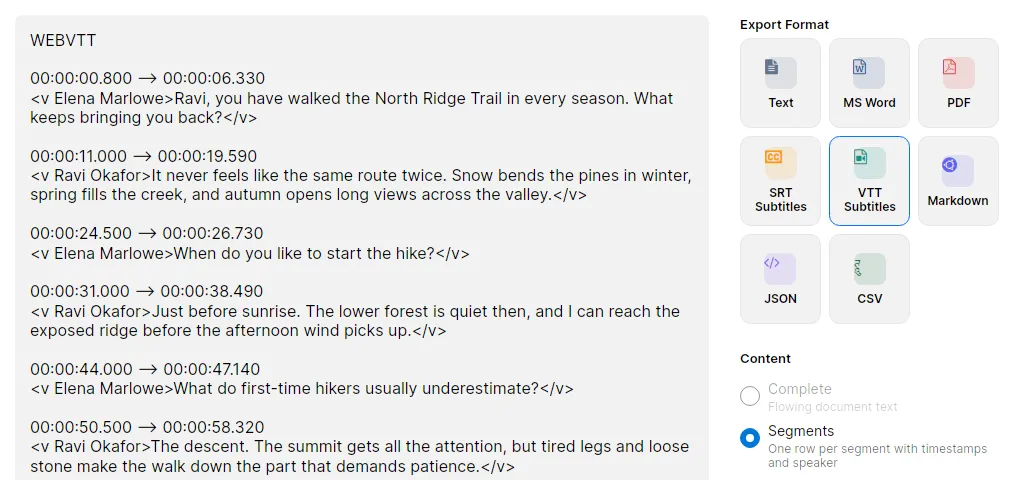
Speaker names go into the export automatically. SRT puts the name in front of the line, as in Elena Marlowe: When do you like to start the hike?. WebVTT writes a voice tag such as <v Elena Marlowe>, which players can use to identify the speaker. Segments without a speaker export as plain text.
Check each segment against the audio
Under Display mode in the sidebar, choose Segments. Every segment then shows its start time and speaker. This is the view that matches your subtitle file: one segment, one subtitle.
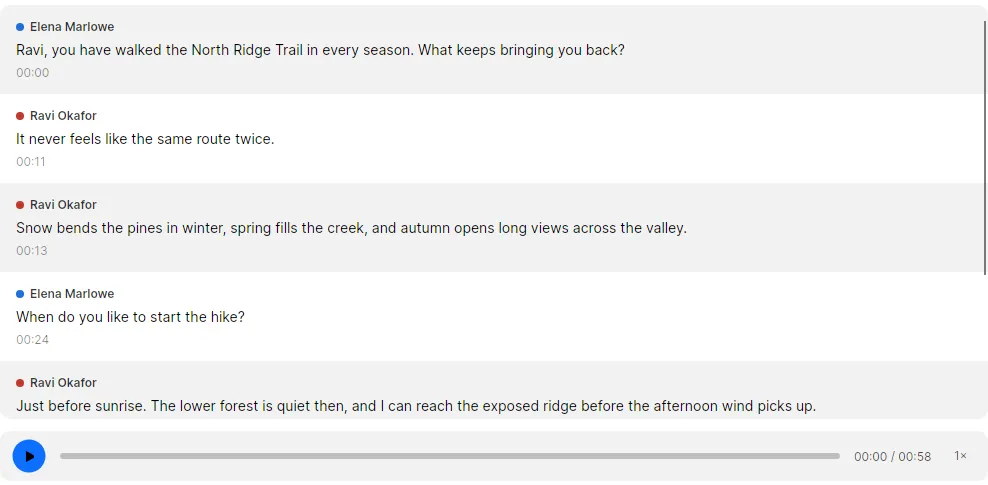
- Listen. Double-click a segment to play from its start. Space pauses and resumes. The 1× button below the list sets the playback speed between 0.25× and 2×.
- Correct the text. Click into a segment and type. TrueScribe saves the change when you leave the field, and Ctrl+Z undoes it.
- Watch the length. TrueScribe writes one subtitle per segment and does not wrap or split lines. Netflix’s timed text style guide allows two lines of 42 characters and up to 20 characters per second. Shorten a segment that runs well past that.
Merge or remove subtitles
TrueScribe takes start and end times from the speech recognition. You cannot drag a subtitle’s start or end, or shift all subtitles at once. Two commands in the segment menu fix the common timing problems:
- A sentence split across two short subtitles. Ctrl+click both segments, right-click the second and choose Merge selected segments here. The merged subtitle runs from the start of the first segment to the end of the second. Merging works on neighbouring segments, and not while the transcript has a translation.
- A subtitle that should not be there, such as a false start or background chatter. Right-click it and choose Delete segment, or select it and press Delete. TrueScribe asks before it deletes.
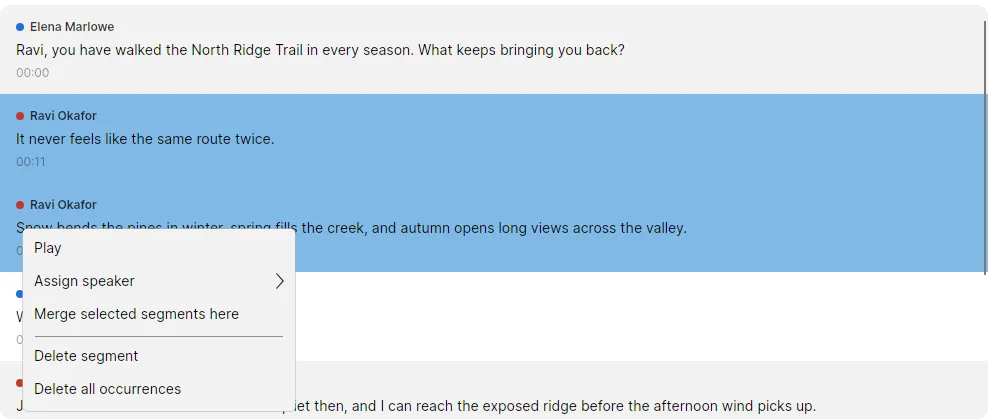
Undo reverses both. If every subtitle is early or late by the same amount, move them together in your video editor after import.
Export SRT or WebVTT
- Select Export at the top of the sidebar.
- Under Export Format, choose SRT Subtitles or VTT Subtitles. Pick SRT unless a web player asks for WebVTT, because every program below reads SRT. The preview on the left shows the file as TrueScribe will write it.
- Select Export and choose where to save the file.
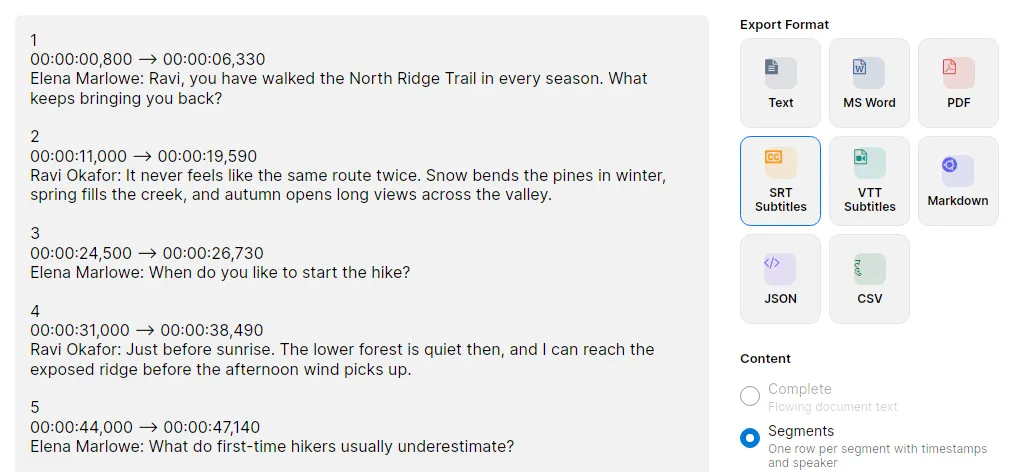
For subtitle files, Content is always Segments. SRT numbers each subtitle and writes times as 00:00:11,000. WebVTT starts with the line WEBVTT, writes times as 00:00:11.000 and leaves out the numbers.
With TrueScribe Pro you can also translate the transcript locally. Export while the Translation view is showing, and the subtitle file keeps the original timing with the translated text.
Which format each program takes
-
YouTube accepts both. Its list of supported caption files counts SRT as a basic format without styling and WebVTT as an advanced format with positioning.
-
Premiere Pro needs SRT. Adobe’s supported caption formats include SRT but not WebVTT. Import the SRT like media, then drag it from the Project panel into your sequence.
-
DaVinci Resolve takes either. The subtitles chapter of the DaVinci Resolve 20 Reference Manual PDF gives two steps:
- Right-click in the Media Pool and choose Import Subtitle.
- Right-click the subtitle clip and choose Insert Selected Subtitles to Timeline Using Timecode.
Resolve places each subtitle at its time on the timeline’s clock, so check that the timeline starts where the recording starts.
-
VLC plays SRT, which its user documentation lists among its subtitle formats. Open the video, then choose Subtitle > Add Subtitle File.
Download TrueScribe to make your first subtitle file, or see what Pro adds for speaker names and translated subtitles.