Transcribe Zoom, Teams and Meet recordings offline
Get the recording file out of Zoom, Microsoft Teams or Google Meet, transcribe it on your own computer, name the speakers and export notes.
Published
First get the meeting recording as a file. Zoom can save it straight to your computer. Teams and Google Meet save it in the organizer’s cloud storage, so you download it from there. Then open the file in a local transcription app, check the text against the audio, name the speakers and export what you need.
This guide uses TrueScribe on Windows or Linux. TrueScribe transcribes the file on your computer with Whisper, with no upload and no account.
Get the recording file
Zoom
A recording you start on your computer stays there. Zoom calls it a computer recording. When the meeting ends, Zoom creates a folder for it. According to Zoom’s guide to finding recordings, that folder is in C:\Users\[Username]\Documents\Zoom on Windows and in Documents/Zoom in your home folder on Linux by default.
Each meeting folder holds a video file named video[number].mp4 and an audio-only file named audio[number].m4a, as Zoom’s list of recording file formats shows. Transcription only needs the sound, so take the M4A file.
Cloud recordings are not on your disk. Sign in to the Zoom web portal, open Recordings & Transcripts and download the recording there.
Microsoft Teams
Teams stores recordings in the cloud. A recording of an ordinary meeting goes to the Recordings folder in the organizer’s OneDrive. A channel meeting recording goes to the channel’s Files tab. To download it, follow Microsoft’s instructions:
- Open the Shared tab in the meeting chat or channel.
- Select the recording.
- Select More options and then Download.
Microsoft states that only the meeting organizer can download the recording. If you are not the organizer, ask them for the file. Recordings also expire after a period your IT admin sets, so download the ones you need soon after the meeting.
Google Meet
Meet saves the recording to the organizer’s Google Drive, in a sub-folder for each meeting inside the Google Meet folder. The organizer and the person who started the recording also get an email with a link. In Drive, select the file, then More and Download. Google’s help page on recording covers who may record and where the file goes.
The download is an MP4 video file. TrueScribe transcribes the sound in it, so there is nothing to convert.
Transcribe the recording on your computer
TrueScribe runs Whisper locally and suggests a model that suits your hardware. It downloads the model once, on first use, and reuses it offline after that. A graphics card is not required.
- Select Transcribe Files on the home screen, or drop the MP4 or M4A file onto the window.
- TrueScribe detects the spoken language. If the meeting was in one language, you can select it instead.
- Wait for the transcript. A long meeting takes longer on a slower computer, but the file never leaves it.
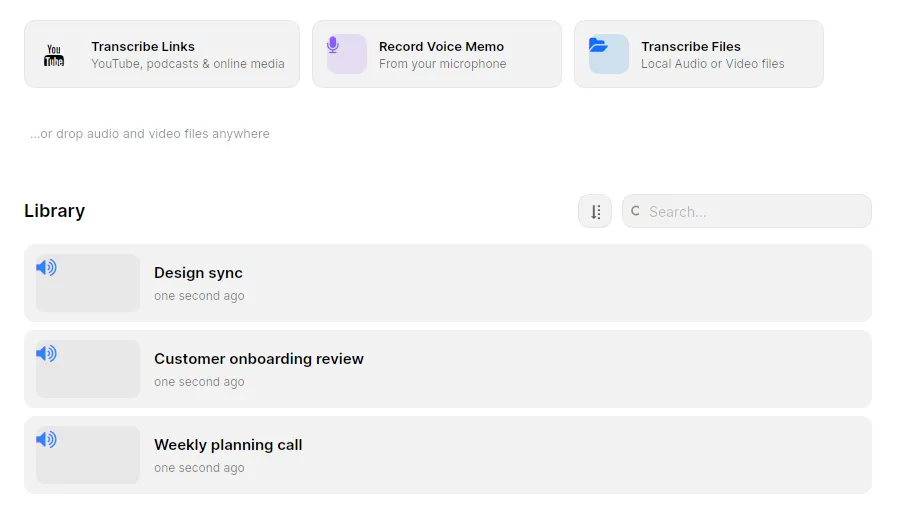
The Free version transcribes local files without a time or file limit. With Pro, you can queue a week of meetings in one batch.
Downloading the recording from OneDrive or Google Drive needs a connection. Once the file and the model are on your computer, transcription does not.
Check the transcript against the recording
Meetings are harder to transcribe than a dictation. People talk over each other, someone has a weak microphone, and product names and acronyms come out misspelled. Play the recording back against the waveform and correct the text where it differs, with undo and redo if you change your mind.
Every transcript stays in the TrueScribe library. Search the text of all of them later to find what someone said in last month’s meeting.
Name the speakers
Speaker detection is part of TrueScribe Pro and runs on your computer. It labels voices as Speaker 1, Speaker 2 and so on, and you give the labels names.
- Open the Speakers panel next to the transcript.
- Set Speaker count. Auto works, but if you know how many people spoke, select that number. Count the people who spoke, not everyone who joined.
- Select Identify speakers.
- Click a label such as Speaker 1, type the person’s name and press Enter.
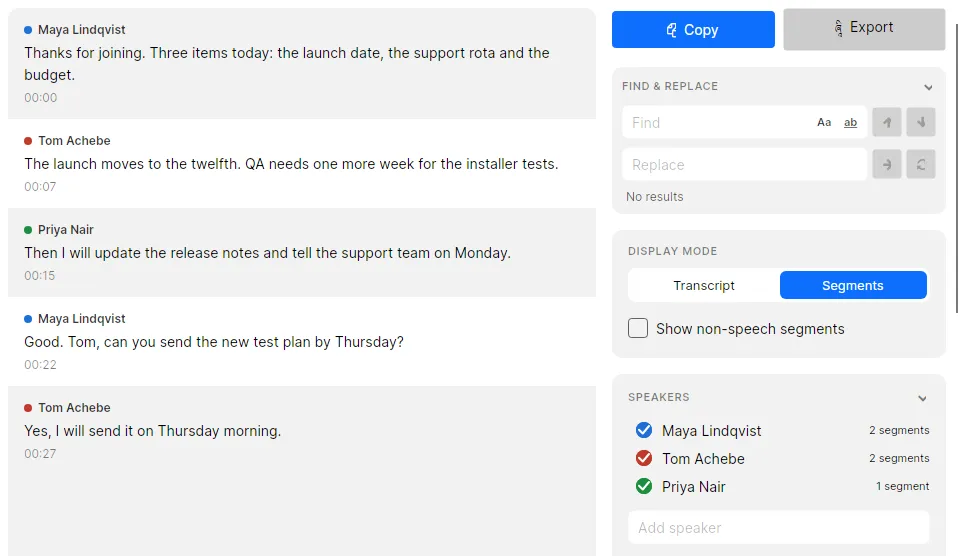
When a segment sits under the wrong name, right-click it, open Assign speaker and pick the right person. The guide on speaker diarization explains where speaker detection goes wrong and how to fix each case.
Turn the transcript into notes
AI Research answers questions about the transcript. Ask what was decided, who took on which task, or which questions stayed open. It runs with a local model, or with a cloud provider you configure. A cloud provider receives the transcript text it needs for each request, so leave it on a local model for internal meetings.
Pro adds one-click prompts such as Summarize, Highlight Key Points and Extract Questions, and lets you save your own prompt for the next meeting. Select Copy response to paste an answer into your notes. Read the answer against the transcript before you send it on, especially names, dates and numbers.
Export the transcript
Select Export and choose what goes into the file. Under Content, Segments keeps the timestamps and the speaker names, which suits meeting minutes. Complete exports the text as continuous prose without speaker names. The preview shows the file before you save it.
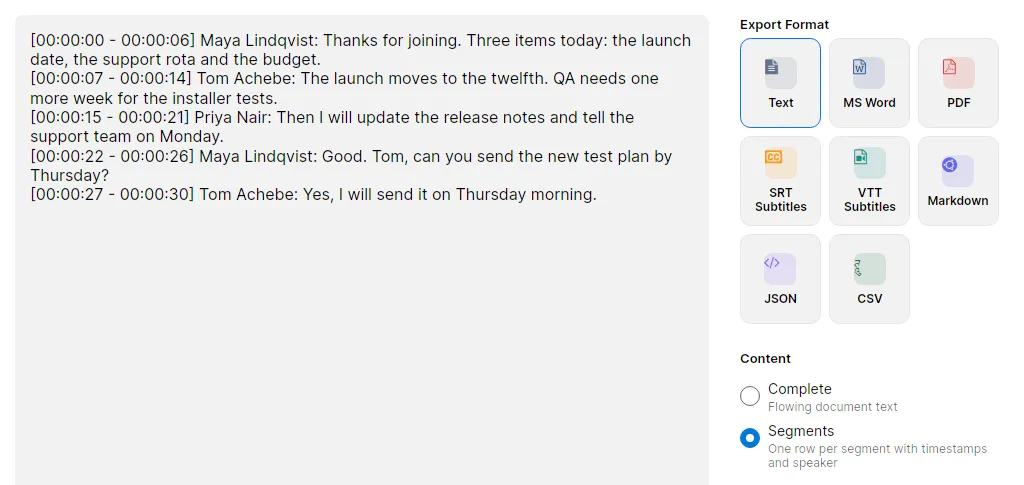
Every version of TrueScribe exports TXT, SRT and WebVTT. Pro adds documents and structured data.
Download TrueScribe to transcribe your next meeting, see what Pro includes, or read how TrueScribe compares with Otter.ai, a meeting assistant that transcribes in the cloud.