Watch folders: transcribe new recordings automatically
Point TrueScribe at a folder and every recording that lands there is transcribed on your computer, with the transcript saved next to it if you want.
Published
A watch folder is a folder TrueScribe checks on its own. Pick the folder your recorder, phone or sync client drops files into, and each new audio or video file in it is transcribed without you opening the app. Choose export formats, and the transcript is written beside the recording as a TXT, SRT or other file, named after the original.
Watch folders are part of TrueScribe Pro on Windows and Linux. Transcription runs on your computer with Whisper, so the recordings stay where they are and nothing leaves your machine.
Add a folder
- Open File › Preferences (
Ctrl+,) and select Watch folders. - Select Add folder and pick the folder in the file picker.
- TrueScribe shows the folder’s settings and how many media files are already in it. Select Watch folder.
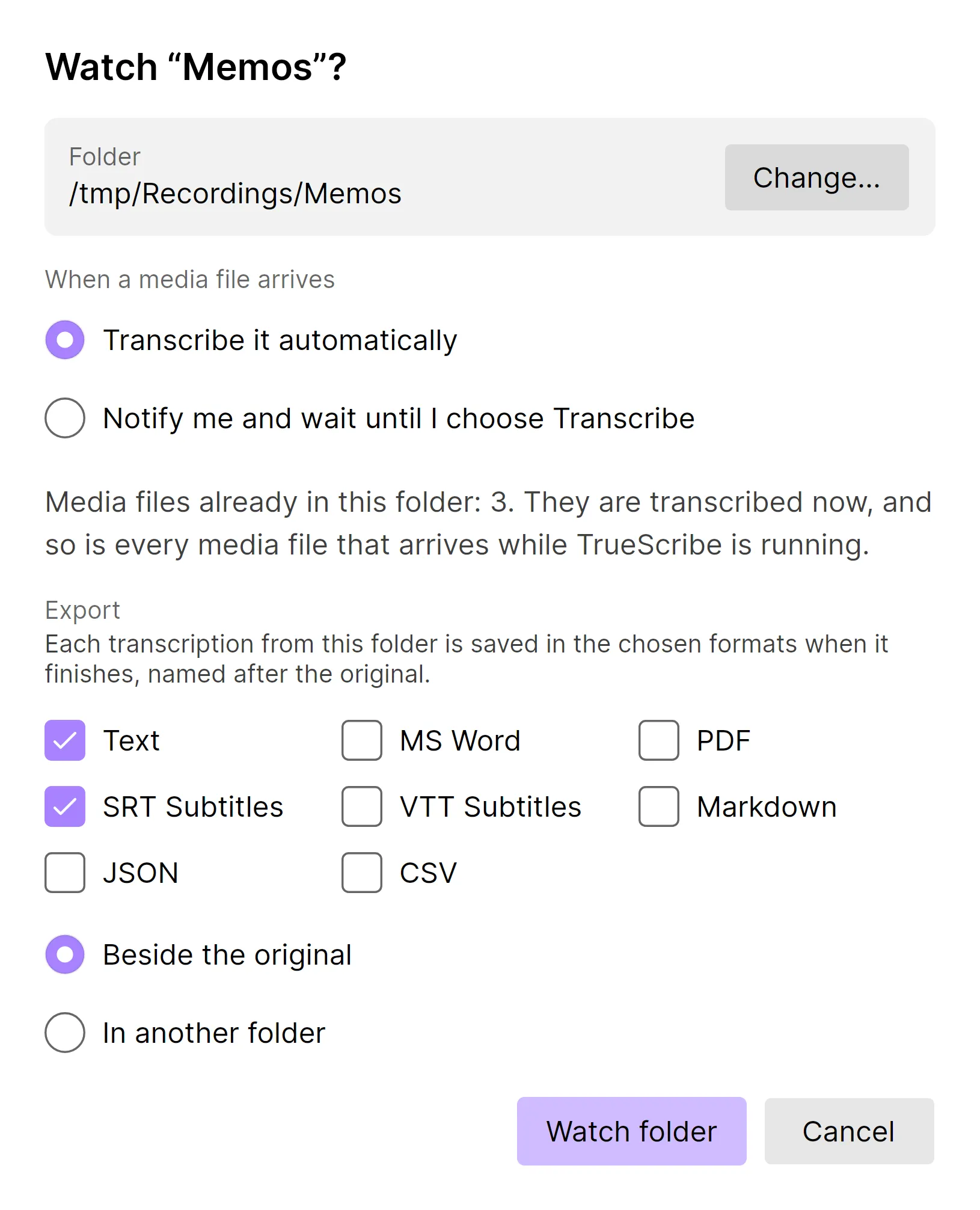
The files already in the folder are queued right away. From then on, every media file that arrives while TrueScribe is running is queued too. Only the top level of the folder is watched, so a recorder that creates a sub-folder per session needs that sub-folder added instead. Files that are not media are ignored.
Each transcription gets a tag with the folder’s name, so you can tell in the library where it came from. Watch-folder jobs run after anything you start yourself, so a folder full of old recordings does not block the file you just dropped onto the window.
Decide what happens when a file arrives
The folder dialog has two modes under When a media file arrives.
Transcribe it automatically is the default. The file is queued as soon as it has finished arriving. TrueScribe waits until the file has stopped changing for a couple of seconds and can be opened, so a recorder that is still writing, or a sync client that is still downloading, does not get a half transcript.
Notify me and wait until I choose Transcribe lists the file in the library with a Transcribe button and shows a notification. Nothing runs until you press the button. Use this for a shared folder where most files are not for you, or when the model you use is slow and you want to pick what gets transcribed.
Select Edit on a folder’s row to change the mode later.
Save the transcript next to the recording
Tick the formats under Export in the folder dialog, and each transcription from that folder is saved as soon as it finishes. Beside the original writes meeting.txt next to meeting.m4a. In another folder collects every export in one place, for example a Transcripts folder that another program or a sync client picks up. If a file with that name already exists, the new one is named meeting (2).txt.
Every version exports TXT, SRT and WebVTT. Pro adds DOCX, PDF, Markdown, JSON and CSV.
The transcription stays in the library whether or not an export is written. If an export cannot be saved, for example because the output folder is on a drive that was unplugged, TrueScribe shows a notification and keeps the transcription.
Keep watching after closing the window
While a folder is watched, closing the main window does not quit TrueScribe. The window hides and an icon appears in the system tray with the tooltip “TrueScribe is watching folders”. Its menu has Open TrueScribe and Quit TrueScribe. Files that arrive in the meantime are still transcribed. Click the icon to bring the window back.
On a Linux desktop without a system tray, closing the window quits TrueScribe as before, and the Watch folders page says so. KDE and Windows have a tray; GNOME needs an AppIndicator extension. In that case, keep the window open, or minimise it, to keep watching.
Files that land in a watch folder while TrueScribe is not running are found the next time it starts.
Pause, change or stop a folder
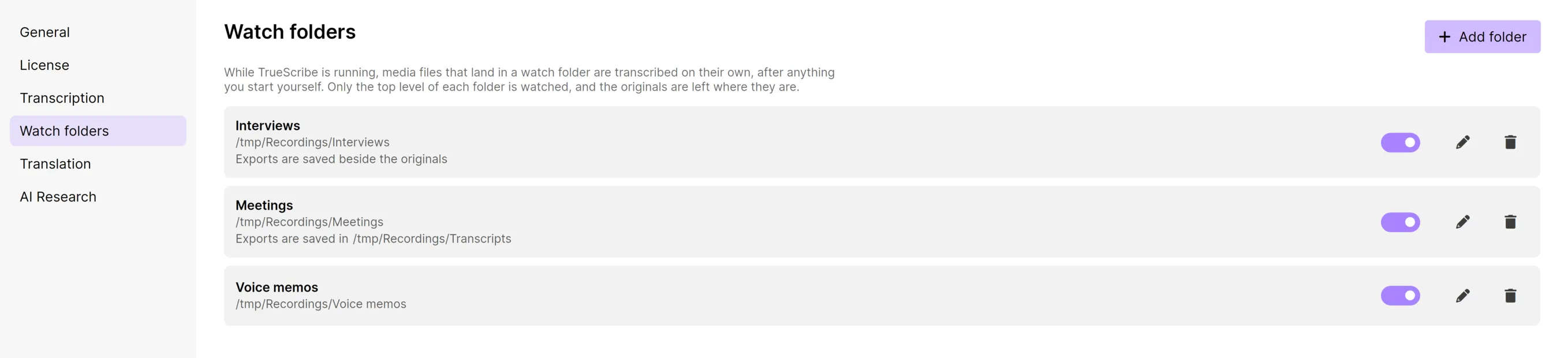
Each folder in the list has three controls.
- The Watch toggle switches the folder off and on. While it is off, nothing in it is looked at. Switch it back on and whatever arrived in the meantime is queued.
- Edit opens the folder dialog again, where you can change the mode and the export settings or point the entry at a different folder.
- Stop watching removes the folder. The transcriptions already made from it stay in the library.
A folder that cannot be found, for example on a disconnected drive, or that TrueScribe is not allowed to read, shows that under its path and is skipped until it is back. The other folders keep working.
TrueScribe refuses to watch the folders it uses for its own recordings and downloads, and a folder that receives another watch folder’s exports. Pick a different folder in that case.
If Pro stops being active
When the Pro licence on a device lapses or a trial ends, watch folders pause. The folders and their settings are kept, nothing in them is looked at, and watching resumes as it was when Pro is active again.
See what Pro includes or read how to transcribe Zoom, Teams and Meet recordings offline, which covers where those apps put the recording file.