Transcribe YouTube video to text on your computer
Paste a YouTube link into TrueScribe Pro and get a transcript you can read, correct, search and export as TXT, SRT or WebVTT, with the transcription running on your own machine.
Published
To turn a YouTube video into text, you need the audio and a speech recognition model. TrueScribe does both steps from one link. Paste the video’s address, and TrueScribe fetches the media, transcribes it with Whisper on your computer and puts the result in your library next to your other transcripts. From there you correct the text against the audio, search it and export it.
This guide uses TrueScribe on Windows or Linux. Transcribing a link is part of TrueScribe Pro. If you have the video as a file, the Free version transcribes it without a time or file limit.
How it works in TrueScribe
- On the home screen select Transcribe Links. The tile sits next to Record Voice Memo and Transcribe Files.
- Paste the YouTube address into the dialog and confirm.
- TrueScribe fetches the media, then transcribes it like a file you dropped in. Whisper detects the spoken language, or you select it.
- Open the transcript from the library when it is done.
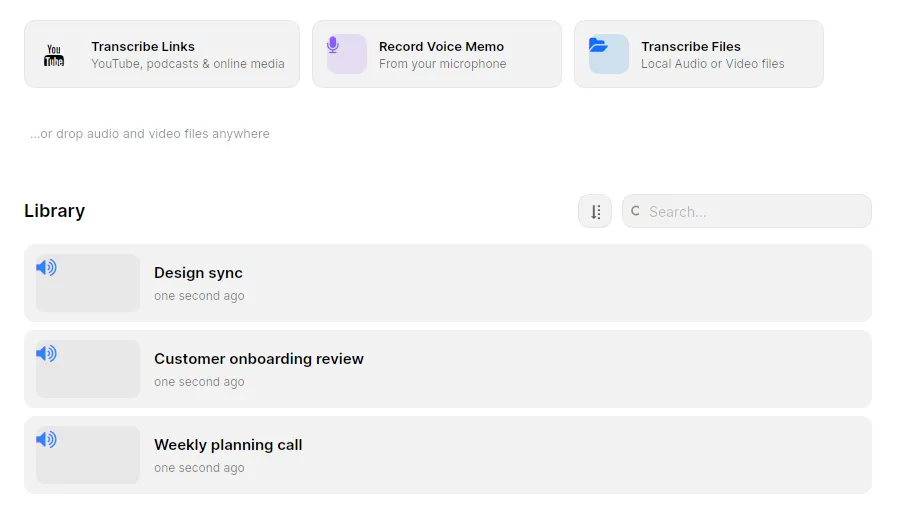
Fetching the media is the one step that needs a connection. Transcription runs on your computer with the Whisper model TrueScribe downloaded on first use, so the audio is not sent to a transcription service and there is no account to create. TrueScribe suggests a model that suits your hardware and uses an AMD, Intel or NVIDIA graphics card when there is one, with no driver setup.
The same dialog takes a Twitch page or a direct link to a media file, such as an MP3 on a web server. The media comes into the same editing workflow as everything else in the library.
What you get
- A transcript you can play and correct. Play the video’s audio back against the waveform and fix the text where Whisper misheard a word, with undo and redo. Free.
- Search across every transcript. Transcribe a series of videos and search their text later to find the passage you remember, without opening each one. Free.
- Subtitles and text files. Export TXT, SRT or WebVTT. Each transcript segment becomes one subtitle with a start and end time, and the preview shows the file before you save it. Free. Pro adds DOCX, PDF, Markdown, JSON and CSV.
- Names and jargon spelled right. Enter the names and terms a channel uses once, and TrueScribe steers every new transcript toward spelling them that way. Add a replacement rule for a term Whisper always mishears. Free.
- Questions answered from the transcript. AI Research answers questions about the video with a local model, or with a cloud provider you configure. Free. Pro adds one-click prompts such as Summarize and Highlight Key Points, and saves your own.
- Speakers told apart. For an interview or a panel, Pro detects who is speaking, labels the voices Speaker 1, Speaker 2 and so on, and lets you name them. Pro.
- The transcript in another language. Pro translates the transcript locally into 25 languages and keeps the original next to it. Pro.
Limits
- Links are a Pro feature. The Free version transcribes local files. To transcribe a video for free, you need it as a file on your disk.
- Supported pages are YouTube, Twitch and direct media links. TrueScribe names those. This guide makes no promise about any other site, about playlists or channels, or about private or live videos.
- Fetching the media needs the network. Transcribing a link, downloading a model, checking your licence and error reporting are the times TrueScribe reaches the network. Once the media and the model are on your computer, transcription itself does not.
- You need the right to transcribe the content. You are responsible for having the necessary rights and permissions for the recordings you transcribe. A video being public does not settle that question.
- The transcript needs your review. Speech recognition, speaker detection and AI output can contain errors. Read the text against the audio before you quote or publish it, especially names, dates and numbers.
- TrueScribe does not edit video. It gives you a transcript. Cutting the video, burning in subtitles or publishing captions happens in your video editor or on YouTube.
Related guides
If you have the video as a file instead of a link, Video to text covers MP4, MKV, MOV and WebM and the subtitle export. For audio episodes rather than video, see transcribe podcast episodes. Buzz and Vibe also transcribe YouTube links on your computer; the Buzz and Vibe comparison shows where they differ from TrueScribe.
Download TrueScribe to transcribe a video you have as a file, or see what Pro includes for link transcription, speaker names and translation.