AI transcription software with Ollama or LM Studio
Connect TrueScribe's AI Research to a model on your own computer with Ollama or LM Studio, pick one that fits your memory, and keep transcripts local.
Published
TrueScribe is transcription software that runs Whisper on your Windows or Linux computer. Its AI Research answers questions about a transcript, and the language model behind it can run on the same computer. Install Ollama or LM Studio, download one model, and TrueScribe finds both on its own. With a local model, the transcript never leaves your device, and AI Research is part of the free version.
The setup takes three parts: choose a model that fits your hardware, install a runtime and download the model, then connect it in TrueScribe.
Choose a model for your computer
A language model has to fit into memory. On a graphics card with its own memory it answers fastest. Without one, the model runs on the processor from system memory and answers more slowly. Look up both numbers first:
- On Windows, open Task Manager, choose Performance, and read the size under Memory. Under GPU, Dedicated GPU memory is the graphics card’s own memory.
- On Linux, run
free -hin a terminal for system memory. On an NVIDIA card,nvidia-smishows the graphics memory.
Then pick a model whose download is clearly smaller than that memory, since your system, TrueScribe and Whisper need room too. These are starting points:
| Your computer | Ollama model | Download |
|---|---|---|
| 8 GB of memory, no graphics card with its own memory | llama3.2:3b |
2.0 GB |
| 16 GB of memory or more without such a card, or a card with 8 GB | gemma4:e4b |
6.6 GB |
| A graphics card with 12 to 16 GB, such as an RTX 4080 | gemma4:12b |
7.7 GB |
| A graphics card with 24 GB | gemma4:26b |
16 GB |
Download sizes are from the Ollama library, checked in October 2026. llama3.2:3b is the model TrueScribe suggests when Ollama has none yet. gemma4:e4b is small enough to run on the processor alone, so keep it next to a larger model as a fallback for when the graphics card is unavailable. If answers come too slowly, move up one row to a smaller model. Gemma 4 thinks before it answers, so on the processor alone the first words take a while to appear.
Option 1: Install Ollama
Ollama is a free, open-source runtime that serves models in the background. TrueScribe recommends it.
On Windows
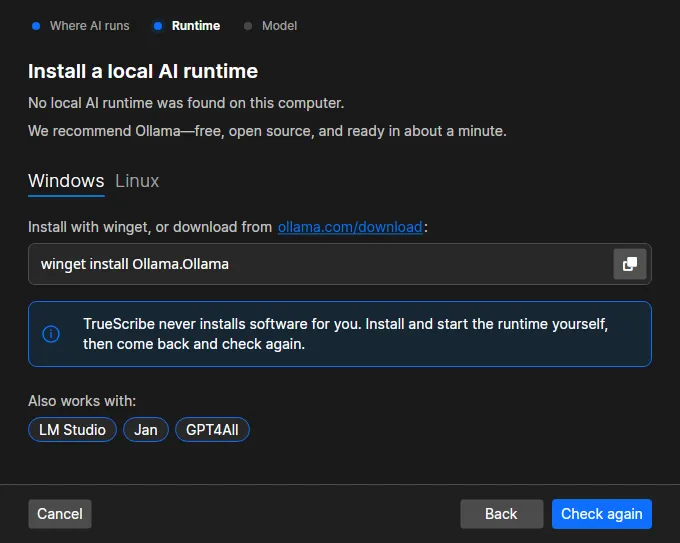
Download OllamaSetup.exe from ollama.com/download and run it, or install it from a terminal with the command TrueScribe shows:
winget install Ollama.Ollama
The installer needs no administrator rights. Ollama then runs in the background, and the ollama command works in Command Prompt and PowerShell. According to Ollama’s Windows documentation, it needs Windows 10 22H2 or newer, NVIDIA cards need driver 551.61 or newer, and AMD Radeon cards work through ROCm or Vulkan.
On Linux
Run the install script from Ollama’s Linux documentation:
curl -fsSL https://ollama.com/install.sh | sh
Check that Ollama runs with ollama -v. If it reports no running instance, start it with ollama serve.
Download the model
Download the model from your row of the table. On a computer with a 16 GB graphics card, for example, pull the model for the card and the fallback for the processor:
ollama pull gemma4:12b
ollama pull gemma4:e4b
ollama list shows every model you have downloaded. Once TrueScribe has used the model, ollama ps tells you where it loaded: 100% GPU is the graphics card, 100% CPU is system memory, and a split means it did not fit on the card. The Ollama FAQ explains the column.
Option 2: Install LM Studio
LM Studio is a desktop app for downloading and running models, with its own model search. Download it from lmstudio.ai. The Windows version runs on x64 and ARM, and the Linux version is an AppImage. LM Studio’s system requirements ask for a processor with AVX2 and recommend 16 GB of memory and 4 GB of graphics memory.
For every step in detail, including the server settings and speeds measured on real hardware, read Transcription software with a local LLM in LM Studio.
- Open the Discover tab with Ctrl+2 and search for the model from your row of the table, written with spaces, such as
gemma 4 12b. - Choose a download option marked 4-bit (Q4) or higher, as LM Studio’s download guide advises.
- Open the Developer tab and turn on Start server. The server documentation also lists
lms server startfor the terminal. - Keep the server port at 1234, where TrueScribe looks for LM Studio. Leave Require Authentication off, because TrueScribe does not send a key to a runtime on your own computer.
Leave Just in Time Model Loading on in the server settings. LM Studio then lists every downloaded model to TrueScribe and loads the one you use. With it off, load the model in LM Studio first.
Connect the model in TrueScribe
-
Open a transcript and switch to AI Research (Alt+2). Until a model is set up, it shows a Set up AI… button. You can also choose Preferences, then AI Research, then Add model.
-
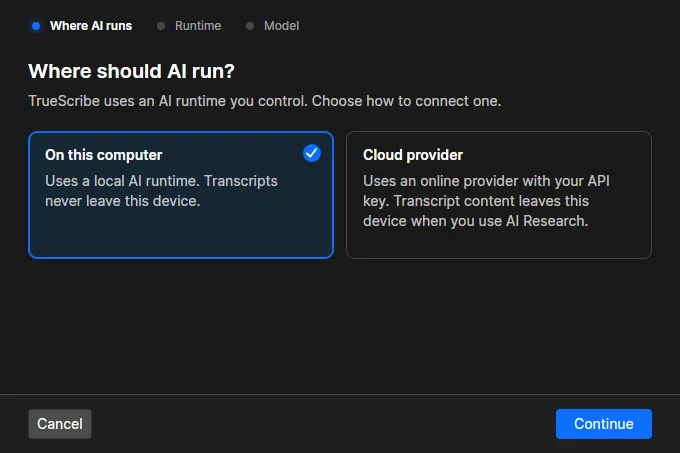
Choose On this computer and Continue.
-
TrueScribe looks for Ollama, LM Studio, Jan and GPT4All on this computer. If it finds none, it shows the Ollama install commands for Windows and Linux. TrueScribe never installs software itself. Install a runtime, then choose Check again.
-
If the runtime has no model yet, TrueScribe says so. For Ollama it shows the
ollama pull llama3.2:3bcommand with a copy button. If you chose a larger model from the table, pull that one instead. For LM Studio it asks you to download a model inside LM Studio. Choose Check again when the download is done.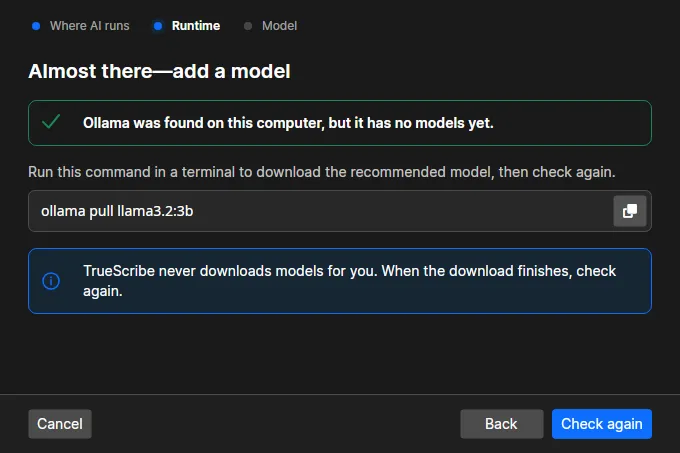
-
Choose a model. The list shows the models of every runtime TrueScribe found, marks one as Recommended, and labels embedding models Not suited for AI Research. Choose Finish. TrueScribe checks that the model answers before it saves it.
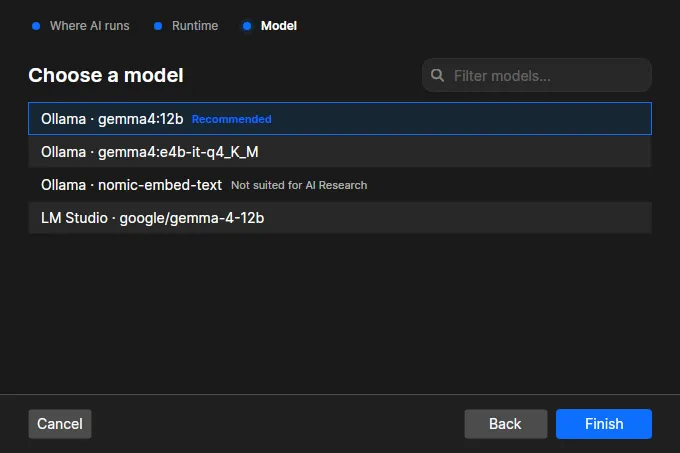
To add the fallback model as well, choose Preferences, then AI Research, then Add model, and pick it in the same list.
Ask about a transcript
Type a question under the transcript and press Enter. The answer appears with the name of the model that wrote it, and the picker in the question box switches to another registered model for the next message.
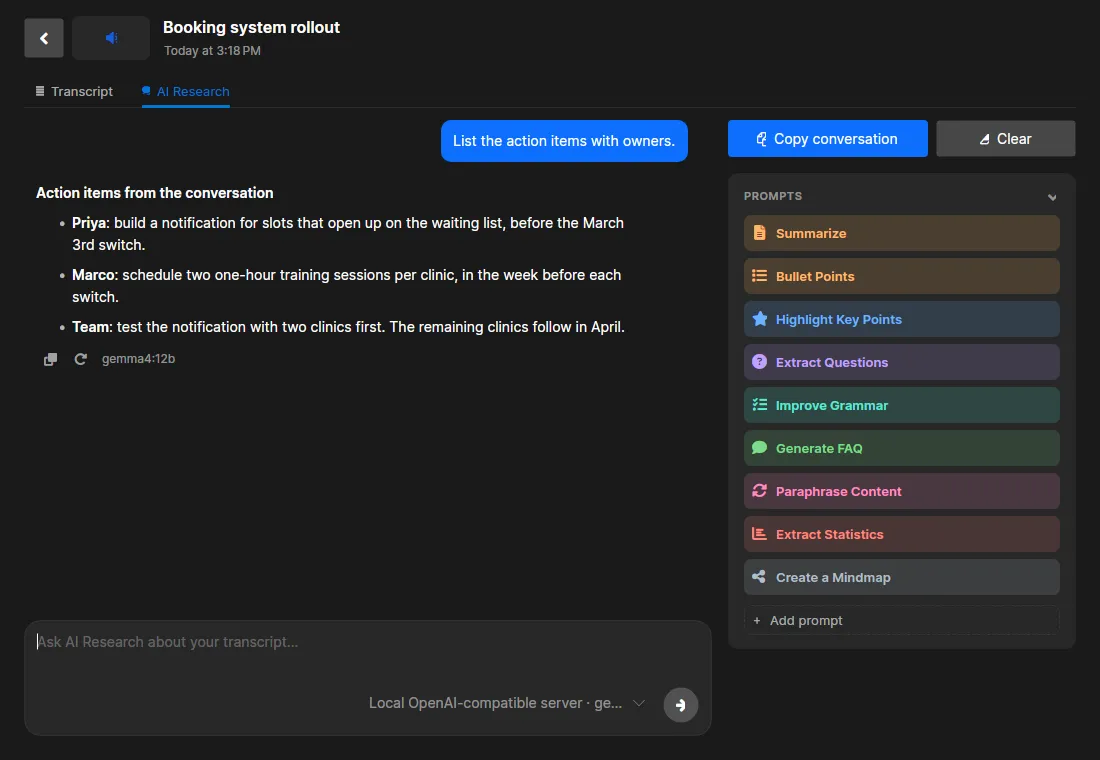
Your own questions are free. Pro adds custom one-click prompts, and automatic meeting summaries and titles with the model you choose. A small local model can miss details or misread who said what, so check answers against the transcript before you use them.
If something does not work
- TrueScribe finds no Ollama. On Windows, Ollama has to run in the background after installation. On Linux,
ollama -vshows whether the server runs. - TrueScribe finds no LM Studio. Start server in the Developer tab has to be on, at port 1234.
- Answers come slowly. Pick a smaller model, or check
ollama psfor a model split between processor and graphics card. - The graphics card is unavailable. Choose the fallback model, such as
gemma4:e4b, in the picker of the question box. - You work with long transcripts. Ollama gives models a 4k-token context on graphics cards with less than 24 GB. A larger context in Ollama’s settings lets the model read more of a long transcript at once, and it needs more memory.
Limits
- TrueScribe does not install Ollama or LM Studio and does not download language models. You do both yourself.
- The search covers this computer only.
- If you connect a cloud provider instead, the content needed for each answer leaves your device.
- TrueScribe runs on Windows and Linux. There is no macOS version.
To see how TrueScribe compares with other transcription software, read 7 transcription apps for Windows and Linux compared. Meeting transcription software for Zoom, Teams and Meet shows where automatic summaries with your local model fit in.
Download TrueScribe, or see what Pro includes.