Transcription software with a local LLM in LM Studio
Install LM Studio on Windows or Linux, download a model that fits your computer and connect it to TrueScribe, so AI Research runs on your own machine.
Published
TrueScribe is transcription software that runs Whisper on your own Windows or Linux computer. Questions about a transcript, summaries and prompts need a second model, a large language model (LLM). LM Studio is a free desktop app that downloads and runs LLMs on your computer, and TrueScribe uses it for AI Research. The transcript then stays on your computer for that step as well.
You install LM Studio, download one model that fits your hardware, turn on LM Studio’s local server, and choose the model in TrueScribe’s Set up AI window. TrueScribe never installs software or downloads models for you.
What you need
- Windows on an x64 processor with AVX2, or on ARM. Linux on x64 or ARM64.
- 16 GB of RAM is what LM Studio recommends. Small models also run with 8 GB.
- A graphics card is optional. With one, answers come much faster.
- Disk space for the model, about 2 to 17 GB for the models in this guide.
- TrueScribe. AI Research is part of the free version.
Step 1: Install LM Studio
On Windows
- Open lmstudio.ai/download and select Download LM Studio for Windows. The installer is a file named like
LM-Studio-0.4.27-1-x64.exe. LM Studio also runs on Windows on ARM, such as Snapdragon X laptops. - Run the installer, then open LM Studio from the Start menu.
- Finish LM Studio’s first-run screens.
LM Studio updates itself on Windows. When a new version is out, it offers the update when it starts.
With an NVIDIA graphics card, keep its driver current. LM Studio runs models through llama.cpp runtimes: one for NVIDIA cards (CUDA), one for other graphics cards (Vulkan) and one for the processor alone. Press Ctrl+Shift+R in LM Studio to see and change the runtime it uses.
On Linux
-
Download the AppImage from lmstudio.ai/download, make it executable and start it:
chmod +x LM-Studio-*.AppImage ./LM-Studio-*.AppImage -
Finish LM Studio’s first-run screens.
LM Studio has no in-app updater on Linux yet. To update, download the new AppImage.
Step 2: Choose a model that fits your computer
The model has to fit in memory. With a graphics card, that is the card’s own memory (VRAM). Without one, it is the computer’s RAM. If a model is too large for the card, part of it runs on the processor, and answers take longer.
Check how much memory you have:
- On Windows, open Task Manager and select Performance. Memory shows the RAM. If a GPU entry from NVIDIA or AMD shows Dedicated GPU memory, that is the VRAM.
- On Linux, run
free -hfor RAM, andnvidia-smifor the memory of an NVIDIA card.
Then find the lowest row that matches your computer:
| Your computer | Model in LM Studio | Download |
|---|---|---|
| 8 GB RAM, no graphics card with 8 GB or more | meta/llama-3.2-3b |
about 2 GB |
| 16 GB RAM or more, or a graphics card with 8 GB | google/gemma-4-e4b |
about 6 GB |
| A graphics card with 12 GB or more, such as an RTX 4080 | google/gemma-4-12b |
about 8 GB |
| A graphics card with 24 GB or more | google/gemma-4-26b-a4b |
about 17 GB |
The sizes follow LM Studio’s model catalog; LM Studio itself reported 6.33 GB for google/gemma-4-e4b. Gemma 4 supports more than 35 languages out of the box, according to Google’s model card, which matters when your recordings are not in English.
On a computer with a graphics card, also download google/gemma-4-e4b as a fallback. It is small enough to answer from the processor alone if the card is busy or fails. We measured it in LM Studio with a transcript of about 3,200 tokens, roughly 20 minutes of conversation, at a context length of 16,384, on a Linux PC with an Intel Core i7-12700F and an RTX 4080:
- On the RTX 4080, the answer started after 0.6 seconds and was written at 110 tokens per second.
- On the processor alone, the answer started after 12 seconds and was written at 6 tokens per second.
The model reads the whole transcript before it writes the first word, and a larger model reads more slowly. On a computer without a graphics card, stay with the small models.
Step 3: Download the model in LM Studio
- Open the Discover tab, or press
Ctrl+2. - Search for the model from your row, for example
google/gemma-4-e4b. - Choose a download option marked 4-bit (Q4) or higher, as LM Studio’s download guide advises, and start the download.
Step 4: Start LM Studio’s local server
TrueScribe talks to LM Studio through its local server on port 1234.
- Switch LM Studio to Developer mode under Settings › Developer. The User mode shows only the chat.
- Open the Developer tab and turn on Start server. The server guide also lists
lms server startfor the terminal. - Keep the port at 1234 and leave Require Authentication off. TrueScribe sends no API key to a runtime on your own computer.
Leave Just in Time Model Loading on in the server settings of the Developer tab. It is the default: LM Studio then offers TrueScribe every downloaded model and loads the one you use. With it off, load the model in LM Studio yourself first.
Step 5: Connect LM Studio in TrueScribe
-
Open a transcript and select the AI Research tab, or press
Alt+2. If no model is set up yet, TrueScribe opens the Set up AI window. You can open the same window later from File › Preferences › AI Research › Add model. -
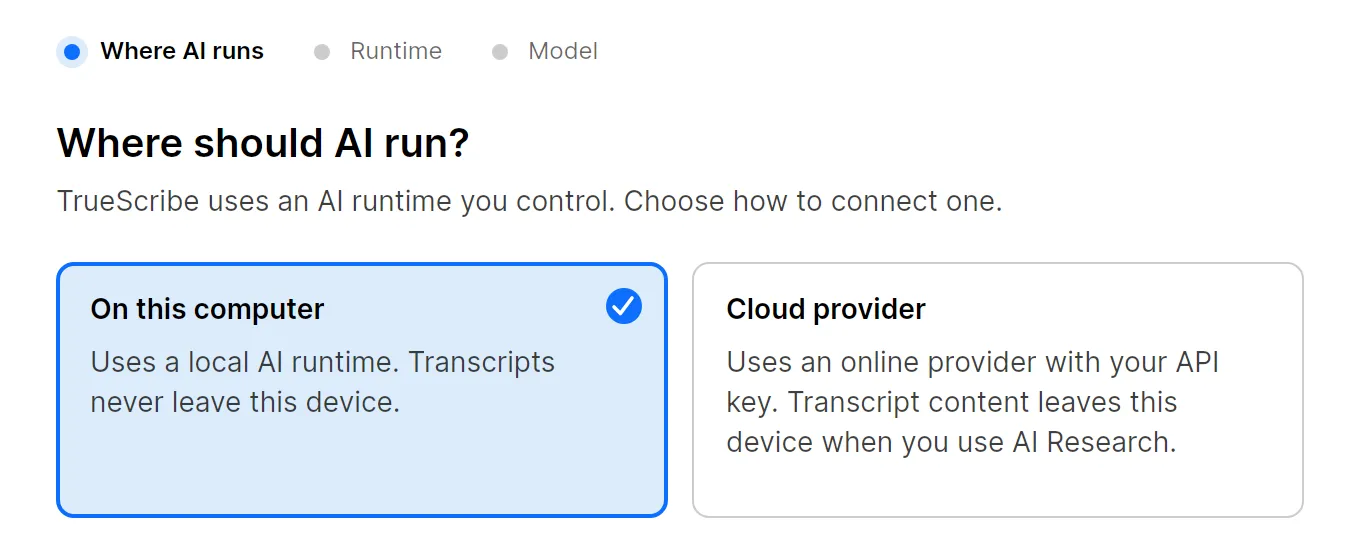
Under Where should AI run?, choose On this computer and select Continue.
-
TrueScribe looks for LM Studio on port 1234 and lists the models it offers under Choose a model. A fresh LM Studio already contains a small embedding model,
text-embedding-nomic-embed-text-v1.5. TrueScribe marks it Not suited for AI Research, because it cannot write answers. If that is the only entry, download a model as in step 3, select Back and then Continue again.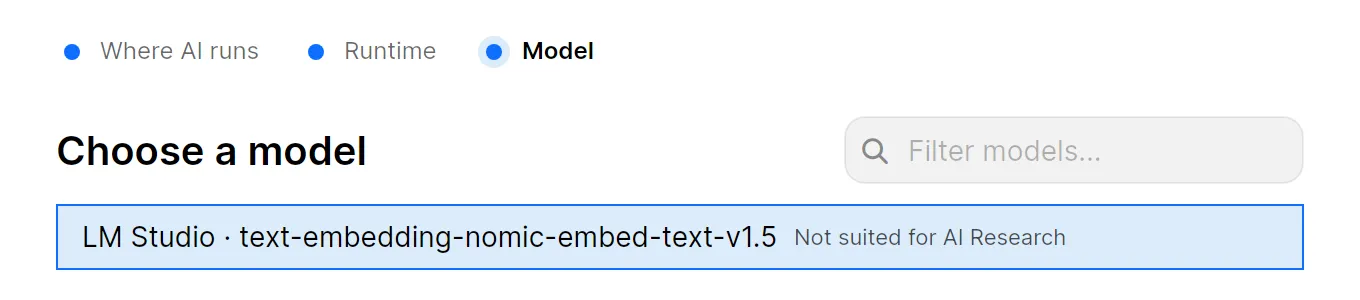
-
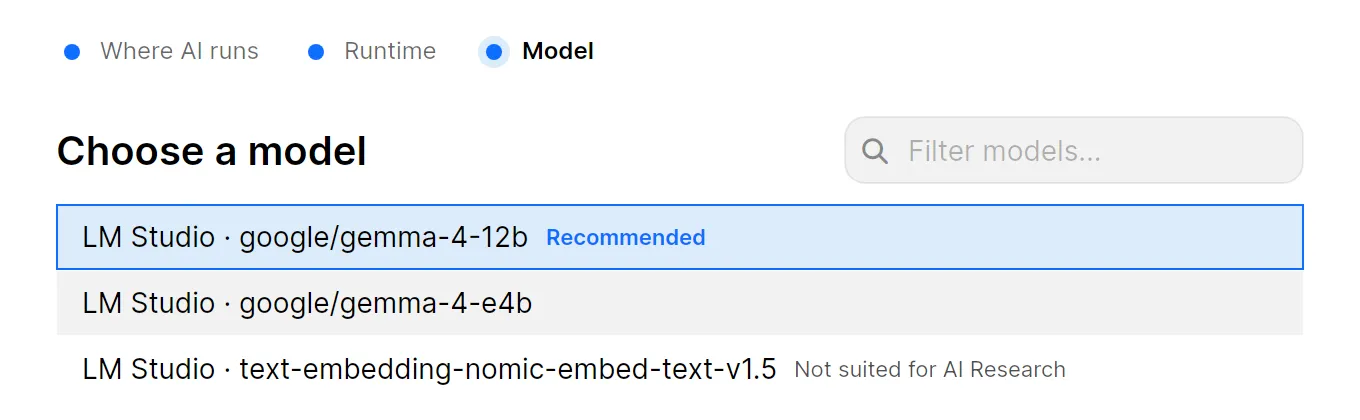
TrueScribe marks one chat model Recommended. Select the model from your row and then Finish. TrueScribe checks that it can use the model before it saves your choice. If Ollama also runs on your computer, its models appear in the same list.
To add the fallback model as well, open File › Preferences › AI Research › Add model again and pick it in the same list.
Ask about your transcript
Type a question or request in the AI Research box and press Enter, such as “Who agreed to send the report?” or “Highlight the key points in this transcript.” The answer comes from the model in LM Studio, and the conversation stays with the transcript in your library.

Your own questions are free. Pro adds one-click prompts such as Summarize and Highlight Key Points, prompts you save yourself, and automatic meeting summaries and titles. Choose the model for automatic summaries under File › Preferences › AI Research › Automatic summaries. A small local model can miss details, so check its answers against the transcript.
Give long transcripts enough context
The context length is how much text the model reads at once, counting the transcript, your question and the answer. In our test, LM Studio loaded the model for TrueScribe’s first request with 8,192 tokens, roughly 40 minutes of conversation. For longer recordings, raise it per model. Open My Models, select the gear icon next to the model and raise the context length, as LM Studio’s per-model defaults describe. LM Studio uses that value whenever it loads the model. More context needs more memory, so raise it in steps and check that answers stay fast.
Fix common problems
- TrueScribe does not find LM Studio. LM Studio has to run with Start server turned on in the Developer tab, on port 1234. Then select Check again.
- Your downloaded model is missing from the list. Wait until the download in LM Studio has finished. Check that Just in Time Model Loading is on in the server settings, or load the model in LM Studio first. Then select Back and Continue in TrueScribe.
- Answers take long. Choose a smaller model from the table. On a computer without a graphics card, use
google/gemma-4-e4bormeta/llama-3.2-3b.
What stays on your computer
With LM Studio, TrueScribe sends the transcript only to LM Studio’s server on your own computer. If you add a cloud provider later, the Set up AI window asks for your consent first, because transcript content then leaves your device. TrueScribe uses the network for model downloads, licence checks, updates and error reporting. The recording and the transcript stay on your computer.
Related guides
- AI transcription software with Ollama or LM Studio covers the same setup with Ollama.
- Transcription software for Windows and Linux: 7 compared shows where each app runs and what it costs.
- Meeting transcription software for Zoom, Teams and Meet covers recording a call and summarizing it with your model.
- Interview transcription software for GDPR research covers pseudonymizing, storage and deletion.
Download TrueScribe to try AI Research with LM Studio, or see what Pro includes.