Lecture transcription: lectures to text and study notes
Record a lecture or seminar, transcribe it on your own computer, search every session, draft study notes and export subtitles for course videos.
Published
Record the lecture or bring the recording you already have, and let TrueScribe transcribe it with Whisper on your own computer, with no upload and no account. Every lecture then stays in a library you can search before the exam.
This guide is for students reviewing a course, teachers captioning their course videos, and researchers who record talks and seminars. It uses TrueScribe on Windows or Linux. Recording, transcribing, correcting, searching, AI Research and TXT, SRT and WebVTT export are free, with no time or file limit. Batch transcription, watch folders, meeting recording, speaker detection, translation, one-click prompts and document exports need Pro.
Ask before you record
Ask the lecturer before you record a lecture or seminar, and check your university’s rules on recording teaching. In a seminar you also record the other students when they speak. TrueScribe keeps the recording and the transcript on your computer, but permission to record comes from the lecturer and your university.
Record the lecture or bring the file
There are four ways to get a lecture into TrueScribe.
- In the lecture hall. Select Record Voice Memo on the home screen. TrueScribe records from your laptop’s microphone until you select Stop & Transcribe, then transcribes the recording on its own. Cancel discards it. There is no pause button, so leave it running through a short break.
- From another recorder. A phone or a handheld recorder near the front often hears the lecturer better than a laptop in row twenty. Copy the file to your computer, select Transcribe Files or drop it onto the window. The guide on transcribing voice memos shows how to get a recording off a phone.
- A lecture recording. A recording your university publishes as a video file transcribes like any other file, with nothing to convert.
- A live online lecture. For a lecture that streams in Zoom, Teams or a browser, Pro adds Record Meeting, which records the call audio and your microphone on your computer. The meeting transcription guide explains which audio it records on Windows and on Linux.
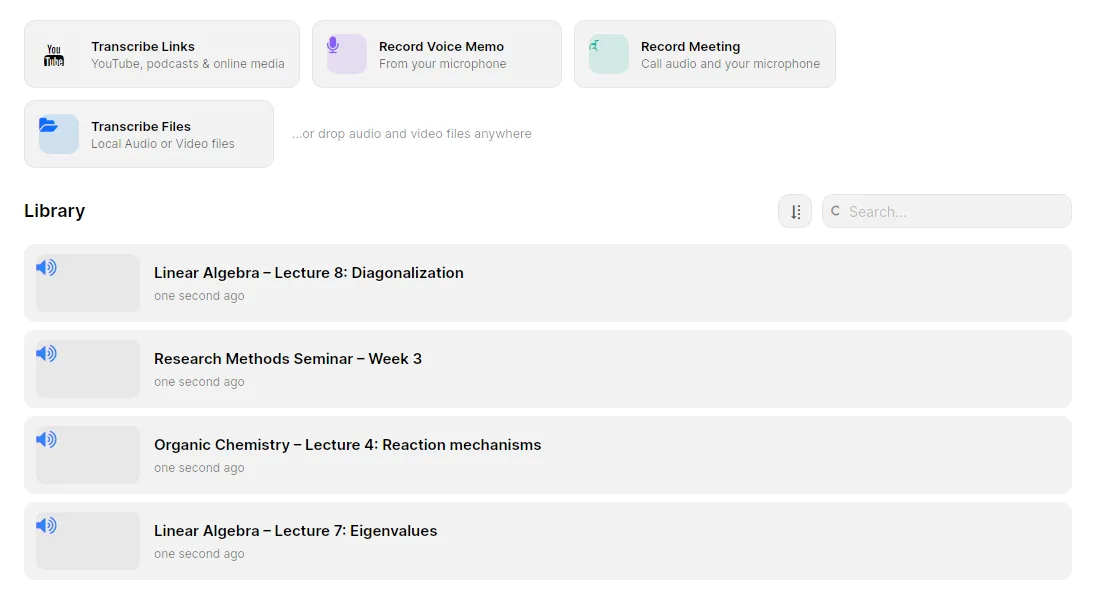
TrueScribe downloads a Whisper model that suits your hardware on first use and runs offline after that. It uses an AMD, Intel or NVIDIA graphics card when there is one, but a graphics card is not required. Whisper detects the spoken language. A slower laptop takes longer, but the recording never leaves it.
Add the course vocabulary
Lectures are full of words a speech model rarely hears: names of theorems, chemical compounds, authors, Latin terms. Whisper writes what it thinks it heard, so a term it does not know comes out misspelled.
Before the next lecture, open Preferences, then Vocabulary, and enter the course’s terms under Terms, one per line or separated by commas. Every transcription you start after that is nudged toward those spellings. For a term Whisper still gets wrong in the same way, select Add rule under Replacements and enter what it writes and what it should say.
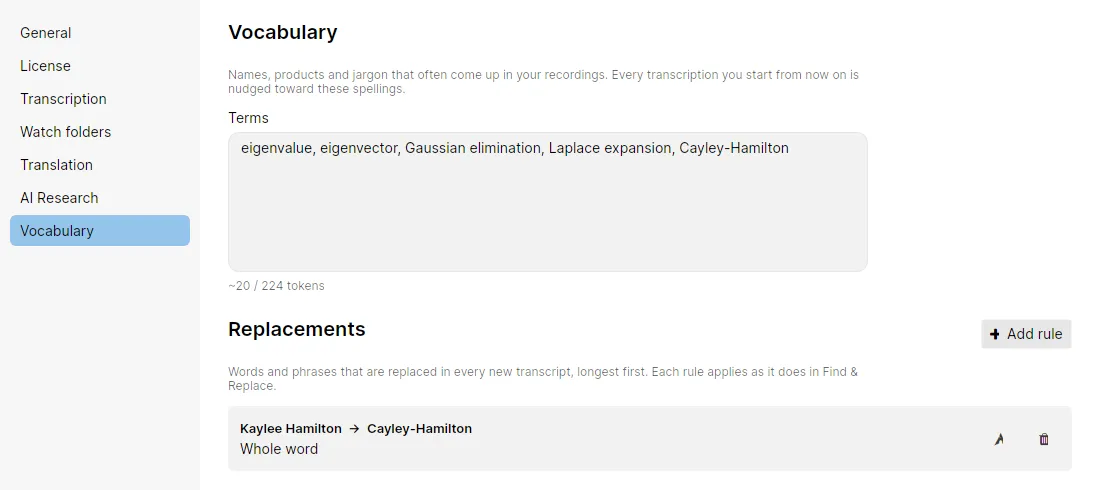
The counter under Terms shows how much of the list TrueScribe can use. A list that is too long gets cut, and TrueScribe warns you, so keep it to the terms of the course you are transcribing now.
Check the transcript against the lecture
Open the transcript and play the lecture back against the waveform. Every segment carries its start time, so you can go back to the minute where the lecturer derived the formula. Correct the text where it differs, with undo and redo if you change your mind. Formulas usually come out as the words the lecturer said, such as “A times v equals lambda times v”, not as notation.
In a seminar with several speakers, Pro detects who is speaking, labels the voices Speaker 1, Speaker 2 and so on, and lets you name them. The guide on speaker diarization explains how to fix a segment that sits under the wrong name.
Search every lecture of the semester
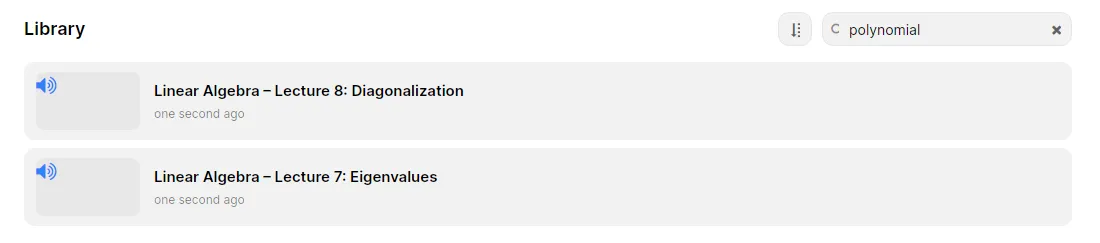
Every transcript stays in the library next to its recording. Type a term into the search box above the library and TrueScribe lists every lecture whose transcript contains it, not only the ones with a matching title. Open the lecture and use the transcript’s Find box to step through each place the term comes up.
Turn the transcript into study notes
AI Research answers questions about a transcript. Ask it to list the definitions from the lecture, to explain a step you missed, or to write practice questions about the topics covered. It runs with a local model, or with a cloud provider you configure. A cloud provider receives the transcript text it needs for each request.
Pro adds one-click prompts, including Summarize, Bullet Points, Create a Mindmap, Generate FAQ and Extract Questions, and lets you save your own prompt for the next lecture. Select Copy response to paste an answer into your notes.
Read the answer against the transcript before you study from it. AI Research can get a definition, a name or a number wrong, and the transcript itself can contain a term Whisper misheard.
Export notes or subtitles
Select Export and pick a format. The preview shows the file before you save it.
- Text for your notes. Choose Text with Content set to Complete for continuous prose, or Segments to keep a timestamp on every line. Free.
- Subtitles for course videos. Choose SRT Subtitles or VTT Subtitles. Each segment becomes one subtitle with its start and end time. TrueScribe does not split long segments, so shorten them in the transcript first. Free.
- Documents. Pro adds MS Word, PDF and Markdown, plus JSON and CSV for structured data.
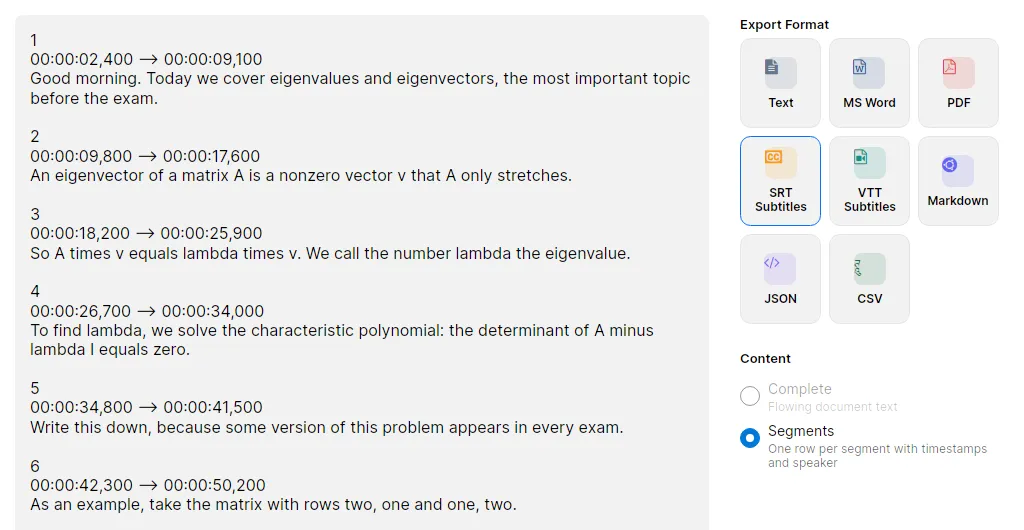
Teachers can upload the subtitle file to the video in their learning platform. Moodle shows WebVTT subtitles in its media player when the file is uploaded to Moodle rather than linked, according to Moodle’s documentation on video. Canvas Studio accepts SRT and VTT caption files, as Instructure’s guide to uploading caption files states. The guide to creating SRT and VTT subtitles offline covers the export settings in detail.
More for a full course
- A semester at once. Pro queues many recordings in one batch, or watches a folder and transcribes each lecture that lands in it. The watch folder guide shows the setup.
- Lectures in another language. Pro translates a transcript locally into 25 languages and keeps the original next to it, so an exchange student can read along in their own language. See transcribe and translate.
Limits
- Speech recognition makes mistakes, and more of them with a distant microphone, a noisy room or questions from the back row. Check names, numbers and formulas against the recording before you rely on them.
- Downloading a model needs a connection. Once it is on your computer, transcribing a lecture does not.
- TrueScribe runs on Windows and Linux. It does not run on macOS, phones or tablets.
Download TrueScribe and transcribe your next lecture, or see what Pro adds for a whole semester of recordings.